
#1 What This State Means
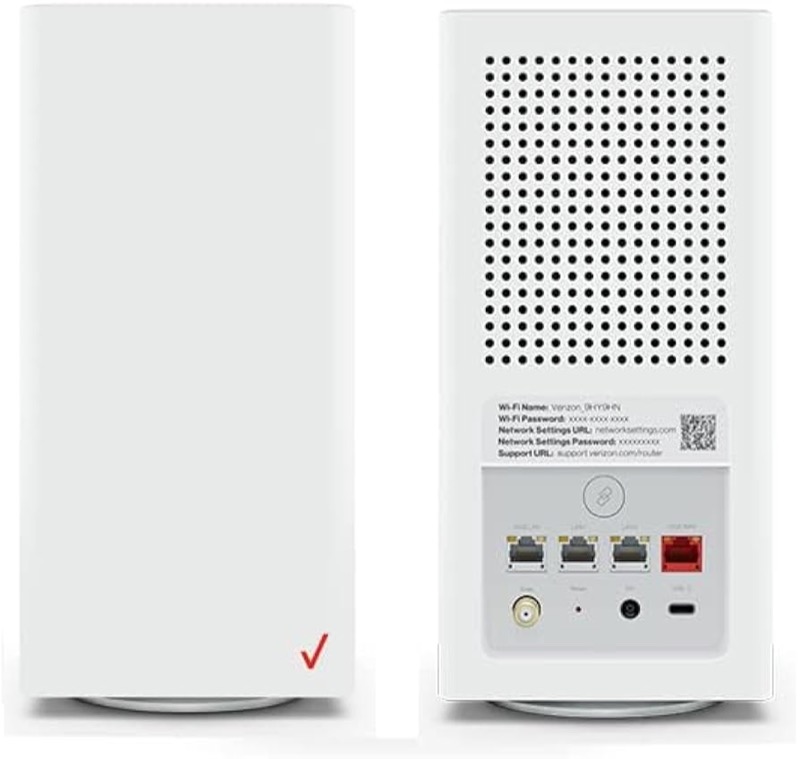
On the Verizon CR1000A, solid white is the normal operating state. Verizon’s user guide (S08) says the Router Status light will be solid white when the router is turned on, connected to the internet, and functioning normally. It also lists solid white as the result of a successful WPS connection, and as the light that returns when Wi-Fi is on again after being turned off.
So a solid white light is the healthy reading. It tells you the router has started, is connected, and is working. It does not tell you that every device in your home can reach the internet, because a device can still have its own problem. A solid white light does, however, rule out the router’s own start-up, pairing and internet states, which the other colours describe.
The page covers the CR1000A only. The user guide’s chart is for that model, and the sources do not show that other Verizon routers use it.
#2 Solid white on the CR1000A
| What you see | What Verizon says | What to do |
|---|---|---|
| Solid white | Normal operation: on, connected, and working | Nothing to fix on the router |
| Solid white after WPS | Pairing completed | Confirm the device is connected |
| Solid white after Wi-Fi was turned off | Wi-Fi is back on | Nothing to fix |
| Solid yellow | No internet connection | Check the connection, not the router’s white light |
The solid white state is the one to expect after a restart, once the fast blinking white has finished. If the light is white and the internet is down, the chart does not show a white light for that case, so check the devices and the outage picture rather than the light.
#3 Steps to Troubleshoot
- Confirm the light is solid white. Make sure it is steady and not blinking, because a blink is a start-up or pairing state.
- If it is solid white, the router is working. Check the device that cannot get online, not the router.
- Check the device’s Wi-Fi connection. Make sure the device is on the router’s Wi-Fi network and has the correct password.
- Check the cable if other devices also cannot connect. The chart shows solid yellow for a missing internet connection, so a solid white light with no internet needs a different check.
- Check for an outage in your area. An outage can stop internet on every device while the router light stays white.
- Contact Verizon if the devices still cannot get online. Give the model, the light colour and pattern, which devices fail, and what you have already checked.
#4 What If Scenarios
Q: The light is solid white but my internet is down. Is the router broken? Not on the chart. Solid white means the router is working normally. The chart shows solid yellow for no internet connection, so a white light with no internet is not a router-light fault. Check the devices, the cable and any outage.
Q: Should the light always be solid white? Yes, once the router has started and is working. The user guide describes solid white as normal operation, so a steady white is what you want to see after a restart.
Q: The light was white and turned yellow. What changed? The chart says solid yellow means no internet connection. The router is no longer reaching the internet, so check the coax cable and any outage, then contact Verizon if it does not return.
Q: Did a factory reset turn my white light on? The user guide does not say a reset changes the light, and this page does not give a reset duration, because only the user guide gives one. A reset removes your settings, so use it only if Verizon support asks you to.
Q: My router is a Fios Router G3100 or another model. Does this chart apply? Not as far as the sources show. This chart is for the CR1000A.
Q: The light was green and now it is white. Did it come back on by itself? The user guide describes solid green as Wi-Fi having been turned off, and says the light returns to solid white to show that Wi-Fi is back on. So a change from green to white means Wi-Fi was switched back on, usually in the router’s settings. Check that your devices can see the network name again.
#5 Related Articles
For the full CR1000A chart, read the Verizon CR1000A light meanings guide. For the start-up state, read the Verizon router blinking white guide. For the WPS pairing states, read the Verizon router blinking blue guide.