
#1 What This State Means
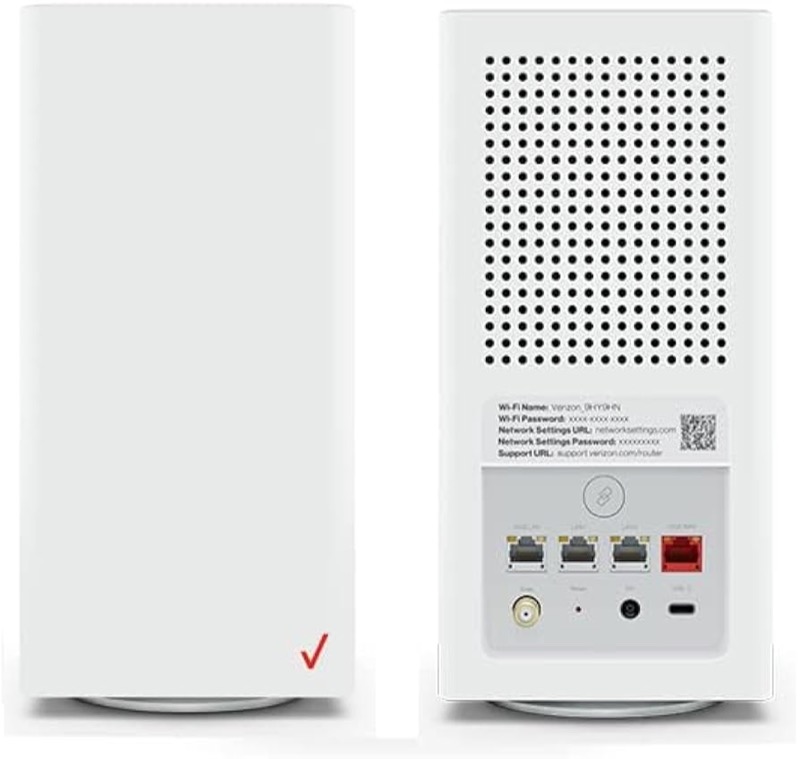
The Verizon CR1000A router uses a single Router Status light on the front to show its state. Verizon’s official user guide (S08) gives the full chart, and Verizon’s knowledge-base chart (S09) repeats most of it. The two agree on the main states: solid white is normal operation, slow blinking blue is pairing mode, fast blinking blue is a successful WPS pairing, solid green means Wi-Fi has been turned off, and solid yellow means there is no internet connection.
The red states are where the two sources do not agree. The user guide lists red for a hardware or system failure, overheating, a system update error and a WPS pairing failure, with different blink speeds for each. The knowledge-base chart puts hardware or system failure on a different colour, and its flattened table makes the red rows hard to read with confidence. So this page does not publish a meaning for each red pattern. It treats the red states as an unresolved source conflict, and it tells you what to check without naming a diagnosis.
The chart applies to the CR1000A. Verizon’s other routers, and the Fios Router G3100, have their own charts, which are not on this page.
#2 Router Status light chart
| Light | Verizon’s documented state | Agreed by both sources? |
|---|---|---|
| Solid white | Normal operation: connected and working | Yes |
| Fast blinking white | Booting, or a system restart | User guide only |
| Slow blinking blue | Pairing mode (WPS) | Yes |
| Fast blinking blue | WPS pairing successful | Yes |
| Solid green | Wi-Fi has been turned off | Yes |
| Solid yellow | No internet connection | Yes |
| Red, any pattern | Hardware or system failure, overheating, update error, or WPS failure | Conflict; not published here |
| Off | Power off | User guide only |
The solid white light is the healthy state. The yellow light is the state the chart ties to a missing internet connection.
#3 Steps to Troubleshoot
- Check whether the light is solid white. If it is, the router is working normally, so check the device that cannot get online.
- If it is solid yellow, check the connection. Verizon’s chart says there is no internet connection. Check the coax cable at the wall and the router, then check for an outage in your area.
- If it is fast blinking white, wait. The user guide describes that as booting or a system restart, so let it finish.
- If it is slow blinking blue, finish the pairing. That is WPS pairing mode. Complete the pairing on the device within the window, or let the light stop.
- If it is solid green, check the Wi-Fi setting. The chart says Wi-Fi has been turned off, so turn it back on in the router’s settings if you need it.
- If the light is red, do not interpret it alone. Because the two sources disagree on the red states, check the router’s temperature and location, check the cables, and contact Verizon with the exact pattern.
- If the light is off, check the power. The chart says off means the router has no power, so check the cord and outlet.
#4 What If Scenarios
Q: The light is solid yellow but my TV works. Is the router broken? Not necessarily. The chart says solid yellow means no internet connection, so the router is not reaching the internet. Check the coax at both ends and look for an outage. Other devices can use other connections, so the TV result alone does not settle it.
Q: The light is red. What does it mean? The sources disagree on the red states, so this page does not give a single meaning. Check that the router is not overheating, check the cables, and contact Verizon with the exact red pattern.
Q: The light is solid green. Did I break the Wi-Fi? The chart says solid green means Wi-Fi has been turned off. Check the router’s Wi-Fi setting in your Verizon account or the router’s settings page, and turn it back on if you want it.
Q: What does the reset button do? The user guide describes the reset button as a way to reset the router to factory settings. A reset removes your settings. Only the user guide gives a hold time, and the knowledge-base chart gives none, so this page gives no duration. Follow Verizon’s current instructions, and use a reset only if Verizon support asks you to.
Q: My router is a Fios Router G3100 or another model. Does this chart apply? No. This chart is for the CR1000A. Use the chart for your own model.
#5 Related Articles
For the blinking white state, read the Verizon router blinking white guide. For the blue light, read the Verizon router blinking blue guide. For an outage, read how to check for an ISP outage.