
#1 What This State Means
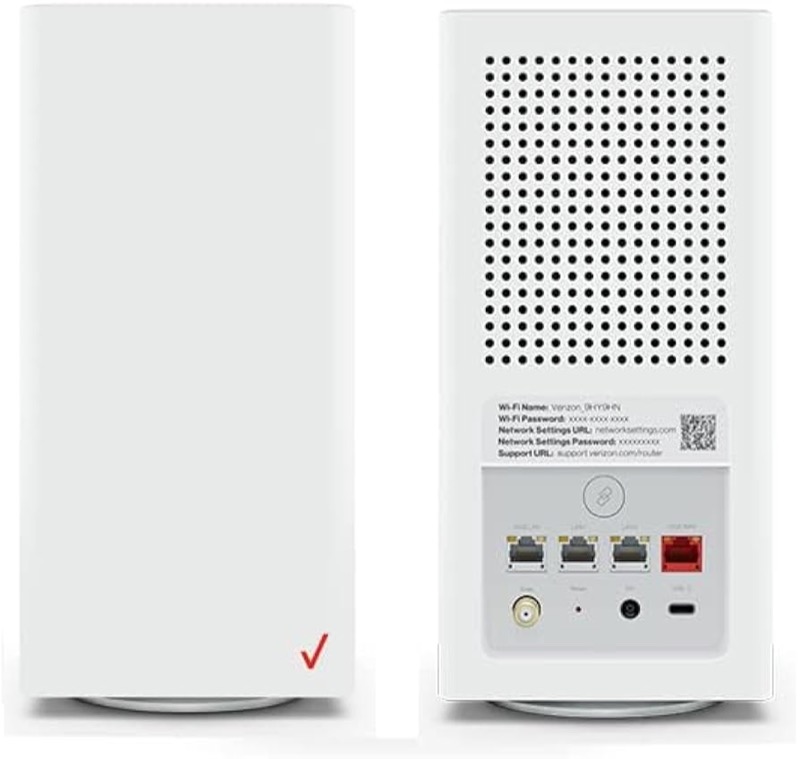
A red light on the Verizon CR1000A is the one area where this site cannot give you a single answer. Verizon’s CR1000A user guide (S08) lists red for several states: a hardware or system failure, shown as slow blinking red; overheating, shown as fast blinking red; a system update error, also fast blinking red; and a WPS pairing failure, which the guide describes as fast blinking red for two minutes after the error. Verizon’s knowledge-base chart (S09) also lists these failure states, but it places them differently on its chart, and the layout is hard to read with confidence.
Because the two sources do not agree, this page does not say what a particular red pattern means. Publishing one reading would mean choosing between the sources, and the site’s rule is not to publish an unresolved conflict. So the page gives you what you can safely do, which is the same whichever red state you have, and it tells you when to contact Verizon.
The page covers the CR1000A only. The user guide’s chart is for that model.
#2 What the sources agree on, and what they do not
| Red pattern | What the user guide (S08) says | What the knowledge-base chart (S09) says |
|---|---|---|
| Slow blinking red | Hardware or system failure | Placed differently; not clear enough to confirm |
| Fast blinking red | Overheating, system update error, WPS pairing failure | Lists overheating and WPS failure; the update-error row is unclear |
| Red for two minutes after a WPS error | WPS error | Lists a WPS pairing failure |
The user guide places a WPS pairing failure and overheating in red. The knowledge-base chart lists both, but its layout does not make their colours clear, so the sources are not confirmed to agree on them. They do not agree on the other red rows. That is why the steps below do not depend on which red state you have.
#3 Steps that apply to any red light
- Note the pattern and its speed. Slow or fast blinking, and how long it has lasted. Do not assume a meaning from the colour alone.
- Check the router’s placement. Keep it on a flat surface with space around it, out of a closed cabinet and away from heat sources. The overheating state is one of the red states in the user guide, so this check is safe whichever state you have.
- Check the power cord. Make sure the cord is fully pushed into the DC jack on the back and the outlet works.
- Check the coax cable. Make sure the coax is firmly connected at the wall and the router.
- If the red followed a WPS attempt, wait for it to stop. The user guide says a WPS error shows fast red for two minutes, so try pairing again after the red has stopped.
- Do not reset to clear the red. The sources do not give a reset as the fix for a red state, and only the user guide gives a reset hold. Reset only if Verizon support asks.
- Contact Verizon with the exact pattern. Give the model, the colour, the speed, how long it has lasted and the checks you made, so Verizon can match it to the failure.
#4 What If Scenarios
Q: The light is slowly blinking red. Is the router broken? The user guide lists slow blinking red as a hardware or system failure, but the knowledge-base chart does not confirm that. Do the placement and cable checks, then contact Verizon, because a hardware fault needs Verizon to confirm.
Q: The light is fast blinking red. Is it overheating? It could be, according to the user guide, which lists overheating, a system update error and a WPS failure as fast red. The sources do not let this page tell them apart. Check the placement first, then the WPS state, and contact Verizon.
Q: The red light came on after I pressed WPS. What now? The user guide says a WPS error shows fast red for two minutes. Wait for the red to stop, then try pairing again. If it keeps failing, contact Verizon.
Q: Can I ignore a red light if the internet works? Not safely. A red light is one of the states the sources describe as a failure or a warning, and the sources disagree on which one. Check the cables and placement, and contact Verizon if the red continues.
Q: Does a red light mean I need a new router? The sources do not say so, and this page does not recommend a replacement. Confirm the fault with Verizon before you buy anything.
#5 Related Articles
For the full CR1000A chart, read the Verizon CR1000A light meanings guide. For the WPS pairing states, read the Verizon router blinking blue guide. For the start-up state, read the Verizon router blinking white guide.