
#1 What This State Means
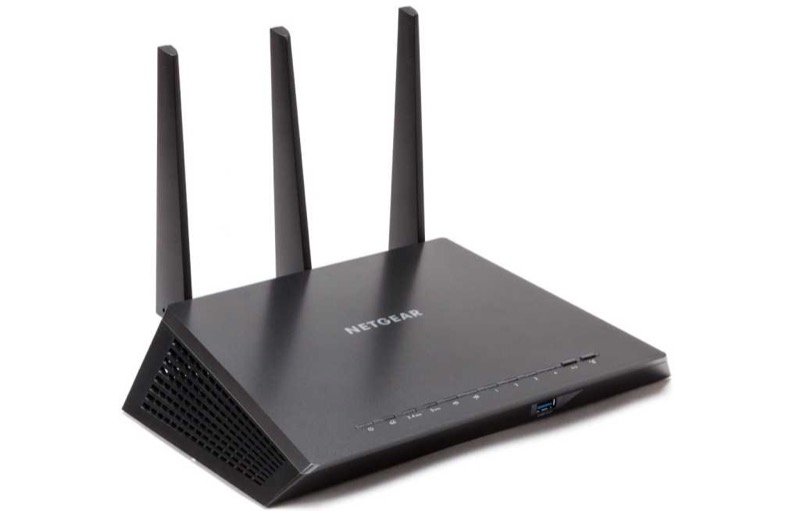
The Nighthawk is NETGEAR’s router line, and its status lights follow the general router article (S29) that covers NETGEAR routers across the WiFi 5, WiFi 6, WiFi 6E and gaming lines. The article lists the Power, Internet, WiFi, WiFi band, USB, Ethernet and WPS lights. It warns that the icons vary with the age and model of the router, so the Nighthawk’s exact icons may differ from the article’s examples. Use the article’s states for the Nighthawk, and check your model’s label and manual for any difference.
The lights that matter most on a Nighthawk are the Power light, the Internet light and the WiFi light. The Power light is solid green or white when ready and solid amber while powering on. The Internet light is off when no Ethernet cable reaches the modem, solid green or white when the connection is ready, and solid amber when a cable is detected to the modem. The WiFi light is off when the radios are off and solid white when they operate.
The article does not describe a Nighthawk-specific light for every model, so do not assume a light that is not in the article means a particular fault. Confirm the model before you rely on a detail.
#2 Nighthawk lights from the article
| Light | State | What NETGEAR says |
|---|---|---|
| Power | Solid green or white | Ready |
| Power | Solid amber | Powering on |
| Power | Blinking amber | Firmware upgrading, or Reset pressed |
| Power | Blinking white | Firmware corrupted; contact NETGEAR |
| Internet | Off | No Ethernet cable between the router and the modem |
| Internet | Solid green or white | Internet connection ready |
| Internet | Solid amber | Ethernet cable detected to the modem |
| Internet | Blinking white | Port sending or receiving traffic |
| WiFi | Off | WiFi radios off |
| WiFi | Solid white | WiFi radios operating |
| WiFi | Blinking | Router sending or receiving WiFi traffic |
| WPS | Blinking | WPS connection in progress |
| WPS | Solid | WPS connection successful |
The WiFi band lights follow the same pattern: off when that radio is off, solid white when it operates, and blinking when it carries traffic. The USB and Ethernet lights follow their own rules in the article.
#3 Steps to Troubleshoot
- Read the Power light first. Solid green or white means ready, solid amber means it is still powering on, and blinking amber means a firmware upgrade or Reset press.
- If the Power light is blinking amber, do not unplug the router. Let the firmware upgrade or reset finish.
- If the Power light is blinking white, contact NETGEAR. The article says that means corrupted firmware.
- Check the Internet light. Off means no Ethernet cable between the router and the modem, so connect it. Solid green or white means the connection is ready.
- If the Internet light is solid amber, check the modem. The article says a cable is detected to the modem, so check the modem itself.
- Check the WiFi light. Off means the WiFi radios are off, so turn them on in the router’s settings. Solid white means they are working.
- Contact NETGEAR if a light does not match. Give the model from the label, which light is showing the state, and what you have already checked.
#4 What If Scenarios
Q: My Nighthawk Internet light is off. What do I check? The article says off means no Ethernet cable is connected between the router and the modem. Check that cable first.
Q: My Nighthawk WiFi light is off. Is the router broken? Not on the article’s reading. Off means the WiFi radios are off, so check the WiFi setting in the router’s settings before anything else.
Q: The Power light is solid amber for a long time. Is that normal? The article describes solid amber as the router powering on. Give it time, and if it does not change, contact NETGEAR with the model and what you have already checked.
Q: My Nighthawk icons look different from the article. Does that matter? The article warns that icons vary with the router’s age and model, so a difference in the icon may be normal for your model. Check your model’s label and manual, and contact NETGEAR if you are unsure.
Q: Can I use this article for an Orbi? No. The Orbi ring and power lights are in NETGEAR’s Orbi article, which is a separate source. Use the Orbi router and satellite lights guide for those.
#5 Related Articles
For the full NETGEAR router light list, read the NETGEAR router lights guide. For a router with a blinking white light, read the NETGEAR router blinking white guide. For the Orbi ring lights, read the Orbi router and satellite lights guide.