
#1 What This State Means
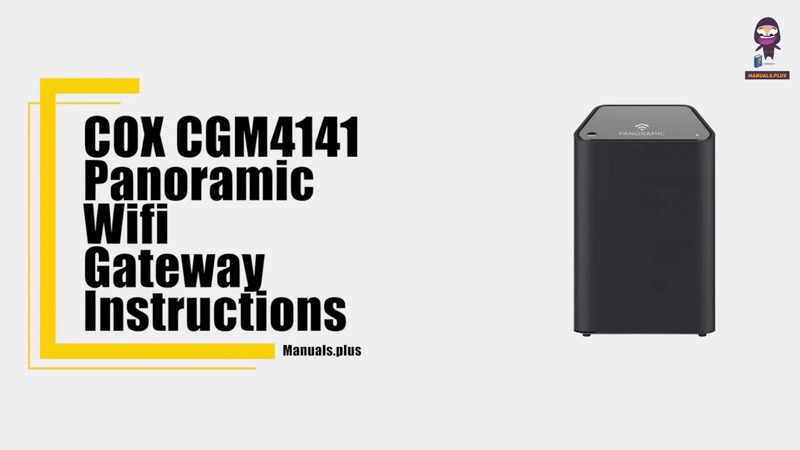
The Cox Panoramic WiFi router, model XER10, has a single light on the top front, and Cox’s table (S31) gives one state for each colour and pattern. A solid white light is the healthy state: the router is online and functioning. Every other state is a step on the way to that point, or a state that needs attention. The table covers the power-up, registration, download and warehouse states, and the error states, in one list.
The table has eight rows: off, solid amber for power-up and boot, flashing amber for acquiring an IP address on the Ethernet WAN, flashing green for a firmware download, solid white for online, flashing white for warehouse mode or a gateway that is not provisioned or is on a captive portal, solid red for no internet connectivity, and green circles for a factory reset in process. Read the table row that matches what the light is doing, then take Cox’s action for that row.
This page covers the XER10 only. Cox’s Panoramic router page is for that model, and the CGM4141 and CGM4331 tables are different. The CGM4140COM and TG1682G are not covered by these sources.
#2 The XER10 light table
| Light | What Cox says | Cox’s action |
|---|---|---|
| Off | Device is off and powered down; no power | Verify the power supply and outlet, and that the outlet is not switched |
| Solid amber | Initial power-up and boot | None |
| Flashing amber | Ethernet WAN acquiring an IP address | None |
| Flashing green | Firmware download in progress; download at boot-up is optional | None |
| Solid white | Device is online and functioning | None |
| Flashing white | Warehouse mode, not provisioned, or on a captive portal | Verify all cable connections, and try resetting the gateway |
| Solid red | No internet connectivity, from a hardware, software, Wi-Fi or Ethernet failure, or any impairment | Verify all cable connections, and try resetting the gateway |
| Green circles | Factory reset in process; after the reboot, the normal boot-up sequence follows | None |
Cox’s table gives the reset as an action for flashing white and solid red, not for the start-up states. For a manual reboot, the table says to unplug the power cord from the back of the gateway rather than at the wall, wait 30 seconds, and plug it back in.
#3 Steps to Troubleshoot
- Read the light against the table. Match the colour and pattern to one row, and note it.
- If it is off, check the power. Verify the power supply and outlet, and make sure the outlet is not connected to a switch.
- If it is a start-up state, wait. Solid amber, flashing amber and flashing green are steps the table gives no action for, so let them finish.
- If it is solid white, the router is online. Check the devices that cannot get online, not the router.
- If it is flashing white or solid red, check the cables. The table asks you to verify all cable connections, so check the coax and any Ethernet connection.
- Reboot the router the way Cox describes. Unplug the power cord from the back of the router, wait 30 seconds and plug it back in.
- Contact Cox if the light stays on flashing white or solid red. Give the model, the row you matched, and what you have already checked.
#4 What If Scenarios
Q: The Panoramic router light is flashing white. What does that mean? Cox’s table says flashing white is warehouse mode, a gateway that is not provisioned, or a captive portal. Verify the cable connections and reset the gateway as the table says, and contact Cox if it stays flashing white.
Q: I want to change the Wi-Fi name or password on my Panoramic router. Can I use the light? No, the light does not change settings. Cox’s XER10 page says customers change the Wi-Fi settings with the Panoramic Wifi app, and after a factory reset the name and password revert to the default. Use the app, not a reset, for a name change.
Q: The router light is green in a circle pattern. Is it broken? No. The table says green circles mean a factory reset is in process, and after the reboot the normal boot-up sequence follows. Let it finish and do not interrupt it.
Q: Can I use this table for my CGM4141? No. The CGM4141 has its own table with different states, including its own blue and firmware patterns. Use the CGM4141 page for that device.
Q: My router is a TG1682G or CGM4140COM. Does this table apply? Not as far as these sources show. Contact Cox for your model’s table.
#5 Related Articles
For the full Cox light tables, read the Cox gateway lights by device guide. For the red state, read the Cox router red light guide. For the amber boot state, read the Cox router solid orange guide.