
#1 What This State Means
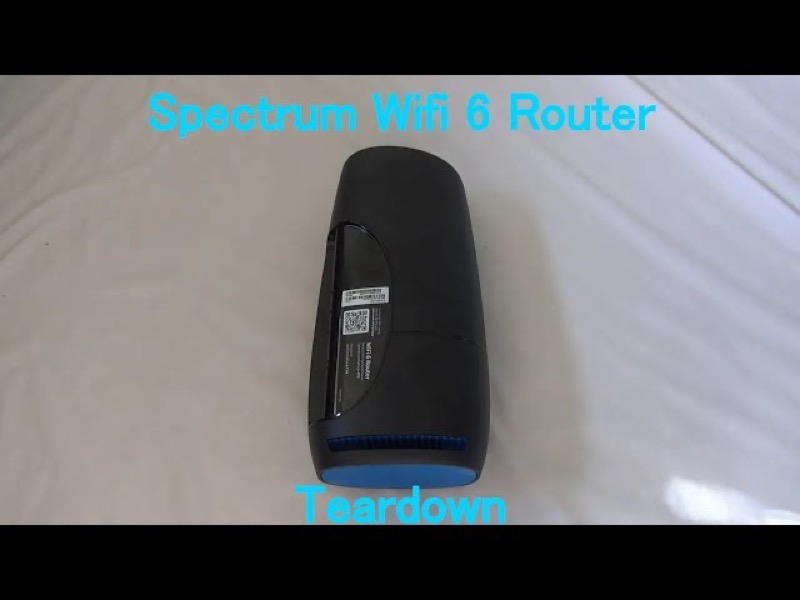
This page is a reference for the Spectrum WiFi 6 router, the SAX1V1 family, rather than a single light state. It explains how to identify the router from its label, what the manual says it does, which ports and buttons it has, and where to find the status-light meanings. Those meanings are on the Spectrum WiFi 6 router lights guide, so this page does not repeat them.
Spectrum’s WiFi 6 manual, version 16, shows the router’s label callout as SAX1V1X. The site’s device record uses the same family name. The manual does not confirm other suffixes such as R, K or S, so do not rely on a suffix to decide which page applies. Check the label on your own router and match the family name it shows.
The manual’s technical specifications describe the router as a WiFi 6 device. It lists concurrent 2.4 GHz and 5 GHz bands, 802.11ax radios on both bands, bandwidths of 20 and 40 MHz on 2.4 GHz and 20, 40, 80 and 160 MHz on 5 GHz, and WPA2 personal security. Those are the manual’s own figures, so use them to confirm the router’s capabilities, not to judge its health.
#2 Identify your router
- Find the label on the router. Turn it over or check the underside. Look for the model callout and the Wi-Fi network name and password printed on the label.
- Match the family name. The manual’s label callout reads SAX1V1X. If your label shows a different ending, the manual does not confirm it, so check the status-light guide for the pattern you see and contact Spectrum to confirm the model.
- Note the default network name. The manual’s setup card shows the network name in the form SpectrumSetup-XX, followed by the password. Use the label on your router, not the example in the manual.
- Confirm it is a WiFi 6 router, not a modem. This page covers the router only. Spectrum’s modems have their own lights and are not described here.
#3 Ports and buttons
| Part | What the manual says |
|---|---|
| Ethernet (LAN) ports | Connect network cables for local devices, such as a PC, game console or printer |
| Internet (WAN) port | Connect the network cable from the modem |
| Power plug | Connect the supplied power supply to a home outlet |
| Reset button | Press and hold for 4 to 14 seconds to reboot. Hold for 15 seconds or more to factory reset |
| Status light | One front light; its colours and patterns are on the status-light guide |
The manual warns that a factory reset removes your personalised configurations. A reboot keeps them. Treat the two holds as different steps.
#4 Placement
The manual gives placement advice that matters for the overheating light. It says not to place the router in a media centre or a closet, not to place it near devices that emit wireless radio signals, such as cordless phones, and not to place it behind a television. Those points are about signal and air flow, so use them when you choose where to put the router.
#5 Steps to Troubleshoot
- Read the status light first. Use the WiFi 6 router lights guide to match its colour and pattern.
- Check the cable in the Internet port. It should be the network cable from the modem, firmly connected at both ends.
- Check the power plug. Make sure the supplied power supply is connected to the router and a working outlet.
- Reboot once if needed. Press and hold the Reset button for 4 to 14 seconds. Your personalised settings are kept.
- Check for a factory reset only if Spectrum asks. A reset of 15 seconds or more removes your settings, so use it only with Spectrum support’s instruction.
- Contact Spectrum if the router still misbehaves. Give the model label, the status-light pattern, and what you have already checked.
#6 What If Scenarios
Q: My label says a different suffix, not SAX1V1X. Is this page for my router? The page covers the SAX1V1 family, and the manual’s label reads SAX1V1X. A different suffix does not confirm a different family, so use the status-light guide for the pattern you see and contact Spectrum if the model does not match.
Q: Can I use the example network name in the manual? No. The manual’s setup card shows a pattern, not your network name. Use the name and password printed on your router’s label.
Q: Where do I put the router to get the best signal? Follow the manual’s placement advice: avoid a media centre or closet, keep it away from cordless phones and other devices that emit radio signals, and do not put it behind a television.
Q: Is this the same as the Spectrum modem? No. The manual covers the WiFi 6 router. Spectrum’s modems have different lights, so use the page for your modem.
#7 Related Articles
For the status lights, read the Spectrum WiFi 6 router lights guide. For a blinking blue light, read the Spectrum router blinking blue guide. For a pulsing red light, read the Spectrum router blinking red guide.