
#1 What This State Means
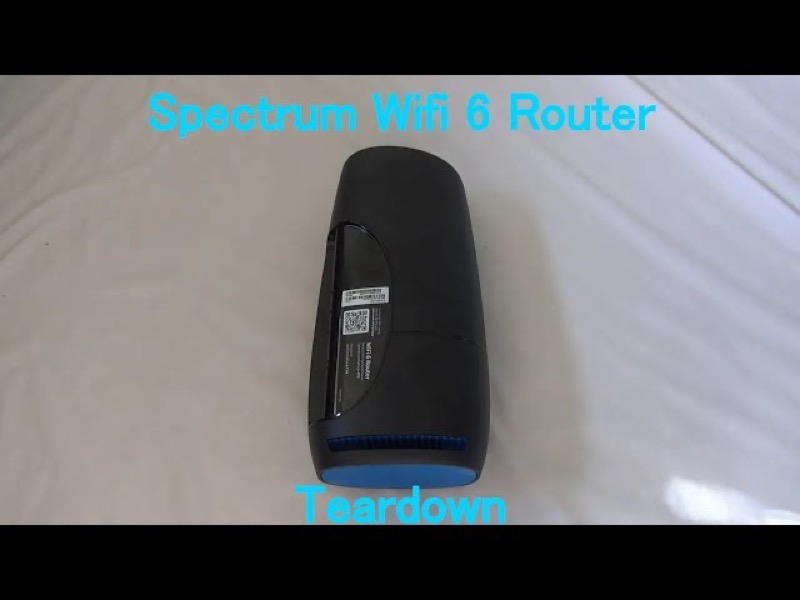
On the Spectrum WiFi 6 router, a red pulsing status light means a connectivity issue. The manual lists it separately from the blue and green states, which mean booting, connecting or connected. So a red pulse tells you the router has lost, or cannot make, a useful connection, and that is a different situation from a blue light that is only slow to connect.
The same red colour also appears in two other patterns on this router. Red and blue or green alternating means a firmware update, and the router restarts itself when the update is done. Red and white alternating means the router is overheating. So before you act on a red light, check its pattern: a pulse is a connection problem, while an alternation is an update or a heat problem.
This page covers the Spectrum WiFi 6 router family only, the the SAX1V1 family. The manual’s status-light table is for that family. It does not describe a red light on Spectrum’s modems or on its other routers, so the steps here do not apply to them.
#2 Read the red pattern
| Red light pattern | What Spectrum’s manual says | What to do |
|---|---|---|
| Red, pulsing | Connectivity issue | Check the connection to the modem and for an outage |
| Red and blue or green, alternating | Updating firmware; restarts automatically | Wait; do not unplug it |
| Red and white, alternating | Overheating | Move it to a cooler, open spot |
The manual does not give a single cause for a red pulse. It names a connectivity issue, so the sensible order is to check the physical connection first, then the network, and then restart the router if the fault remains.
#3 Steps to Troubleshoot
- Confirm the pattern. A red pulse is a connectivity issue. A red and blue or green alternation is a firmware update, and a red and white alternation is overheating.
- For a red pulse, check the cable from the modem. Make sure the cable into the router’s Internet port is firmly connected at both ends.
- Check the modem. Look at the modem’s own lights and make sure it has power. The router cannot connect if the modem is not providing a connection.
- Check for a Spectrum outage. A connectivity issue can come from the network, so check whether there is an outage in your area before restarting anything.
- If the red pulse continues, reboot once. Press and hold the Reset button on the side for 4 to 14 seconds. The manual says your personalised settings are kept.
- If the red pulse returns after the reboot, contact Spectrum. Give the model, the pattern, how long it has shown, and what you have already checked.
- If the light is alternating red and white, cool the router instead. Move it away from closed spaces and heat sources, as the manual’s placement advice describes.
#4 What If Scenarios
Q: The light is red and blue alternating. Is the router failing? No. Spectrum’s manual says that pattern is a firmware update, and the router restarts automatically when the update is finished. Wait for it. Do not unplug the router during the update.
Q: The light is red and white alternating. Should I reboot first? Not first. The manual says that pattern means overheating, so move the router to a cooler, open spot. Reboot only if the light still shows the problem after it has cooled.
Q: The internet works but the light is red and pulsing. Can I ignore it? Not for long. A red pulse is a connectivity issue, so the connection may be unstable even if it works now. Check the cable and the modem, and contact Spectrum if the pulse continues.
Q: Will a factory reset clear the red pulse? Not necessarily, and the manual does not present a factory reset as the fix for a connectivity issue. A factory reset removes your personalised settings, so only use it if Spectrum support asks you to.
Q: My Spectrum device is a modem, not the WiFi 6 router. Does this apply? No. The manual covers the WiFi 6 router family only. Use the page for your device.
#5 Related Articles
For the full WiFi 6 router legend, read the Spectrum WiFi 6 router lights guide. For the blue states, read the Spectrum router blinking blue guide. For an outage, read how to check for an ISP outage.