
#1 What This State Means
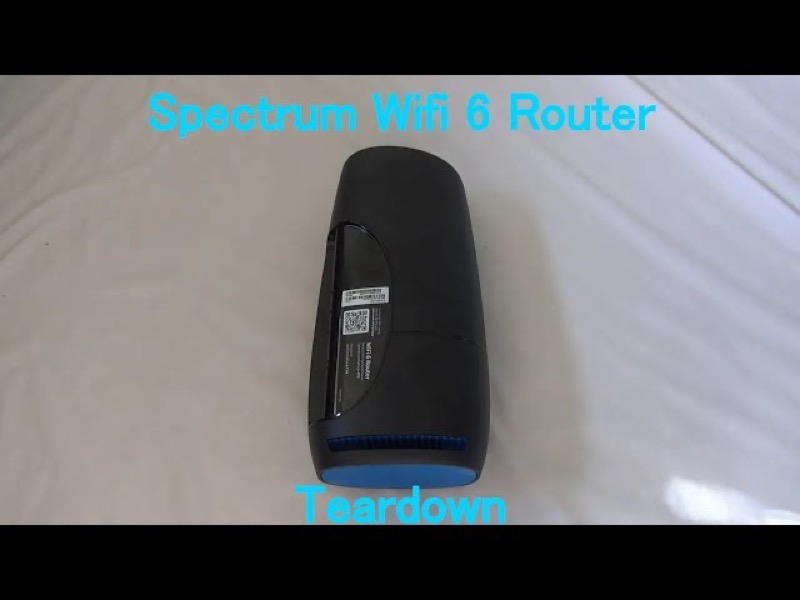
Spectrum’s WiFi 6 router manual does not describe a separate Wi-Fi light. It has one front status light, and its table gives the meanings of that one light: off, booting, connecting, connected, a connectivity issue, a firmware update and overheating. So a “Wi-Fi light off” is not a state in the manual. The question to answer is whether the router’s Wi-Fi network is available to your devices, and the status light does not answer that on its own.
The status light’s “off” state means the device is off, which is a different thing from the Wi-Fi network being unavailable. If the light is blue or green and solid, the router is connected to the internet, and the Wi-Fi network should be running. If your devices cannot see the Wi-Fi name, the check moves to the device and the router’s settings, not the light colour.
This page covers the Spectrum WiFi 6 router family only, the the SAX1V1 family. The manual’s status-light table is for that family. It does not describe Wi-Fi indicators on Spectrum’s modems or other routers.
#2 What the status light can and cannot tell you
| What the light shows | What Spectrum’s manual says | What it tells you about Wi-Fi |
|---|---|---|
| No light at all | Device is off | No Wi-Fi, because the router is off |
| Blue or green, flashing | Booting up | Wi-Fi is not ready yet |
| Blue or green, pulsing | Connecting to the internet | Wi-Fi may not be ready until it settles |
| Blue or green, solid | Connected to the internet | Wi-Fi should be running |
| Red, pulsing | Connectivity issue | Wi-Fi may be affected by the connection |
The light only tells you whether the router is on and connected. It does not show whether the Wi-Fi name is broadcasting, which is why a solid light can still come with a device that cannot see the network.
#3 Steps to Troubleshoot
- Check the status light first. No light means the router is off, so check the power. Solid blue or green means the router is connected.
- Wait if the light is flashing or pulsing. The Wi-Fi network may not be ready until the router finishes starting up or connecting.
- Check the Wi-Fi name from another device. Look for your network name in the list on a phone or laptop. If it is missing, the device may be looking in the wrong place, or the router’s Wi-Fi may not be on.
- Check the device’s Wi-Fi setting. Make sure Wi-Fi is turned on at the device and that it is not in airplane mode.
- Reboot the router once. Press and hold the Reset button on the side for 4 to 14 seconds. The manual says your personalised settings are kept.
- Check the modem and cable. A router that cannot reach the internet may not give devices a working connection, so check the cable from the modem.
- Contact Spectrum if the network name stays missing. Give the model, the status light colour and pattern, which devices cannot see the network, and what you have already checked.
#4 What If Scenarios
Q: The Wi-Fi name is missing, but the light is solid blue. Is the router broken? Not on the manual’s reading. Solid blue or green means the router is connected to the internet. Check the device’s Wi-Fi setting first, then reboot once if the network name still does not appear.
Q: The light is off. Does that mean the Wi-Fi is off? The manual says no light means the device is off. Check the power first. Once the router is on, the status light should show a start-up sequence.
Q: The network name appears but my devices cannot connect. What now? The light alone cannot show that. Check the password on the device, forget and rejoin the network, and check the modem and cable if the other devices also cannot connect.
Q: Will a factory reset bring back a missing Wi-Fi name? The manual does not present a factory reset as the fix for a missing name. A factory reset removes your personalised settings, so use it only if Spectrum support asks you to.
Q: My Spectrum device is a modem, not the WiFi 6 router. Does this page apply? No. The manual covers the WiFi 6 router family only, so use the page for your device.
#5 Related Articles
For the full WiFi 6 router legend, read the Spectrum WiFi 6 router lights guide. For a router with no light, read the Spectrum router power light blinking guide. For a solid blue router with no internet on devices, read the Spectrum router blue light but no internet guide.