
#1 What This State Means
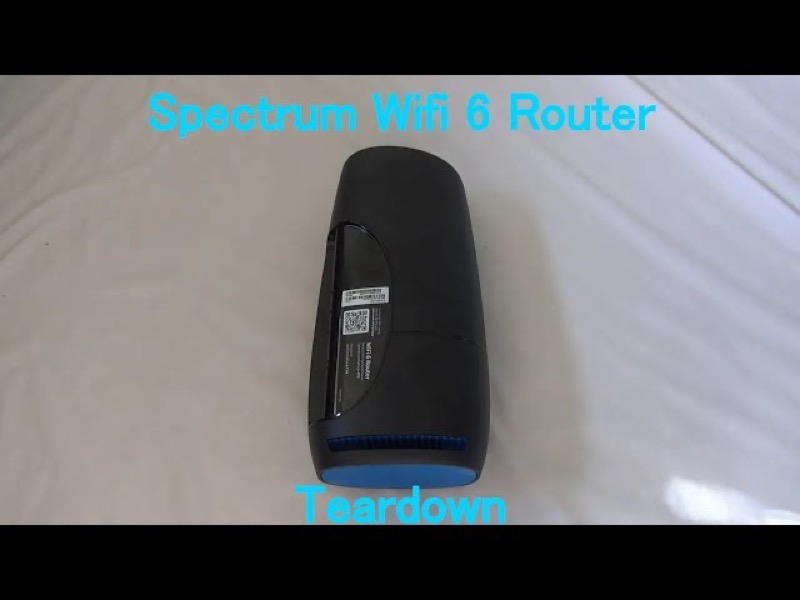
Spectrum’s public “Understanding Modem Lights” page explains what the labels on its modems and gateways mean. Two of those labels are US and DS. US stands for upstream, and Spectrum’s page says the internet is available and you can send, or are sending, data when the light is on. DS stands for downstream, and the page says the internet is available and you can receive, or are receiving, data when the light is on. In other words, US and DS are the send and receive lights on the cable connection.
Spectrum’s page is general. It defines the labels across its modems and gateways, and it does not tie each label to a single model. So this page can tell you what US and DS mean in Spectrum’s terms, but it cannot tell you which lights your modem has or how a particular model’s lights behave. Check your modem’s own label before you rely on a specific colour or pattern.
The US and DS lights are one part of the cable connection. Spectrum’s page also lists the Cable Link light, which is on when registration is complete and the gateway is operational, and the Power light, which shows AC power is available. Read those together with US and DS. A US or DS light that is off, when the others are on, points to the connection, not the router.
#2 Read the US and DS lights
| Label | What Spectrum’s page says | What it tells you |
|---|---|---|
| US (Upstream, Send) | On: the internet is available, and you can send or are sending data | Sending data over the cable connection |
| DS (Downstream, Receive) | On: the internet is available, and you can receive or are receiving data | Receiving data over the cable connection |
| Cable Link | On: registration is complete, and the gateway is operational. Blinking: startup and registration in progress. Off: no cable connectivity | The cable connection and registration |
| Power (PWR) | AC power is available. On some modems, blinking means startup diagnostics are in progress | Whether the modem has power |
| Diag | On or blinking: the gateway might be malfunctioning, so contact Spectrum. Off: functioning normally | A possible fault |
The most useful reading is to compare the labels. If Cable Link is on and US and DS are on, the cable connection is working. If Cable Link is off, the connection is the problem, and US and DS will not help you until it is resolved.
#3 Steps to Troubleshoot
- Check the Power light first. AC power should be available. If it is off, check the power cable and the outlet.
- Check the Cable Link light. A blinking light is startup and registration, which should finish. An off light means there is no cable connectivity.
- Check the coax cable. Spectrum’s page says the modem is connected via the coax cable, so make sure the coax is firmly connected at the modem and at the wall.
- If US or DS is off while Cable Link is on, watch for a while. The connection may be settling, so give it a short time before you act.
- Check the Diag light. If it is on or blinking, Spectrum’s page says the gateway might be malfunctioning, so contact Spectrum.
- Check for a Spectrum outage in your area. An outage can take the cable connection down, which turns off Cable Link and stops the US and DS lights.
- Contact Spectrum if the lights do not match. Give the modem model from its label, which lights are on, off or blinking, and what you have already checked.
#4 What If Scenarios
Q: The US light is on but the DS light is off. What does that mean? Spectrum’s page defines US as sending and DS as receiving. A US light on with a DS light off means the modem is sending but not receiving, so check the coax connection and the Cable Link light, then contact Spectrum if it continues.
Q: The Cable Link light is blinking. Is the modem broken? Not on Spectrum’s reading. A blinking Cable Link light means the gateway is going through its startup and registration process. Give it time to finish.
Q: The Diag light is on. Should I restart the modem? Spectrum’s page says that if Diag is on or blinking, the gateway might be malfunctioning, and it asks you to contact Spectrum. Check the coax and power first, then contact Spectrum rather than relying on repeated restarts.
Q: Does this page apply to my router? No. Spectrum’s page covers modems and gateways. For the WiFi 6 router, use the WiFi 6 router lights guide.
Q: My modem’s labels are different from these. Which is right? Use your own modem’s label and manual. Spectrum’s public page is a general reference and does not tie each label to a single model, so a difference is a reason to check the model, not to assume a fault.
#5 Related Articles
For the full modem-light reference, read the Spectrum modem online light blinking guide. For the WiFi 6 router legend, read the Spectrum WiFi 6 router lights guide. For an outage, read how to check for an ISP outage.