
#1 What This State Means
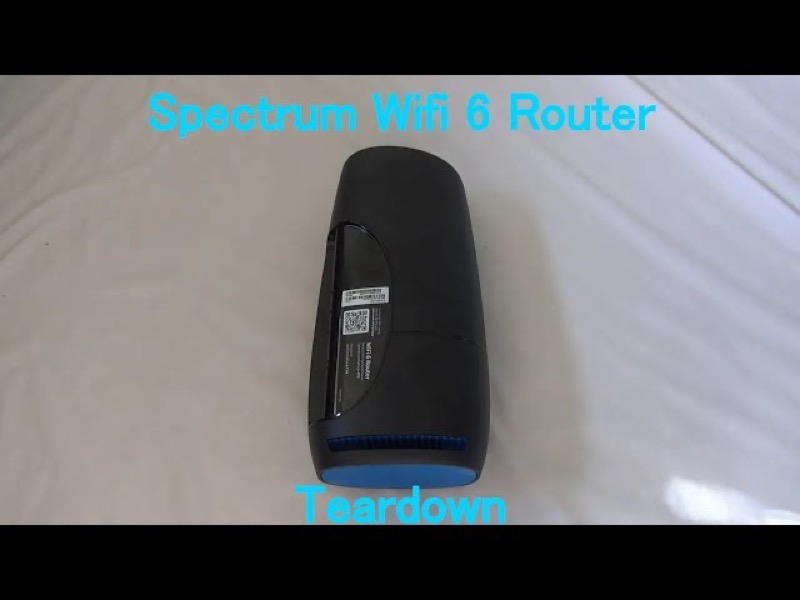
Spectrum’s WiFi 6 router manual does not describe a solid red status light. Its status-light table lists red only in three patterns: red, pulsing, which is a connectivity issue; red and blue or green, alternating, which is a firmware update; and red and white, alternating, which is overheating. So a light that is red and not moving does not match any row in the manual, and the page cannot tell you its meaning from the manual alone.
That does not mean a solid red light is harmless. It means you need to confirm the exact pattern before acting. A light that looks solid may be a pulse you missed, or the start of an alternation with a second colour. Watch the light for a short time and note whether the red stays on by itself or changes.
This page covers the Spectrum WiFi 6 router family only, the the SAX1V1 family. Spectrum’s manual does not describe the lights on its modems or its other routers, so a solid red light on those devices is not covered here.
#2 Match the pattern
| What you see | What Spectrum’s manual says | First step |
|---|---|---|
| Red, pulsing | Connectivity issue | Check the cable and modem, and check for an outage |
| Red and blue or green, alternating | Firmware update; restarts automatically | Wait; do not unplug it |
| Red and white, alternating | Overheating | Move it to a cooler, open spot |
| Red, not changing (solid) | Not in the manual | Watch it, check the cable, then contact Spectrum |
The last row is the important one for this page. Because the manual has no solid red state, do not treat a solid red light as a known diagnosis. Work through the checks that apply to the red states the manual does document, and contact Spectrum if the light does not match any of them.
#3 Steps to Troubleshoot
- Watch the light for about a minute. Note whether the red stays solid, pulses, or alternates with blue, green or white. A pattern that changes tells you which row of the chart applies.
- If it pulses, check the connection. A red pulse is a connectivity issue, so check that the cable from the modem to the router’s Internet port is firmly connected at both ends.
- If it alternates with blue or green, wait. That pattern is a firmware update, and the router restarts itself when the update is finished.
- If it alternates with white, move the router. That pattern is overheating, so put the router in a cooler, open spot.
- If the red stays solid, check the modem and cables. The manual does not describe this state, so start with the cables and the modem, then look for a Spectrum outage in your area.
- Reboot once if the fault remains. Press and hold the Reset button on the side for 4 to 14 seconds. The manual says your personalised settings are kept.
- Contact Spectrum if the solid red does not clear. Say that the light is solid red, which the manual does not describe, and give the model and what you have already checked.
#4 What If Scenarios
Q: The light is solid red on my Spectrum router. Is it broken? The manual does not say what a solid red light means on the WiFi 6 router, so the page cannot confirm a fault. Check the cable and modem, reboot once if needed, and contact Spectrum if the red stays.
Q: The red light was pulsing and now it is solid. What changed? The manual lists a pulsing red light as a connectivity issue, but it does not describe what a steady red means. Check the connection first, then describe the sequence you saw when you contact Spectrum, since the manual does not cover a change from pulsing to steady.
Q: The light is red and blue alternating. Is it the same as solid red? No. Red and blue or green alternating is a firmware update in the manual, and the router restarts by itself when the update finishes. Do not unplug it while it alternates.
Q: Will a factory reset clear a solid red light? The manual does not present a factory reset as the fix for a red light. A factory reset removes your personalised settings, so use it only if Spectrum support asks you to.
Q: My Spectrum device is a modem, not the WiFi 6 router. Does this page apply? No. The manual covers the WiFi 6 router family only, so use the page for your device.
#5 Related Articles
For the full WiFi 6 router legend, read the Spectrum WiFi 6 router lights guide. For a pulsing red light, read the Spectrum router blinking red guide. For the blue states, read the Spectrum router blinking blue guide.