
#1 What This State Means
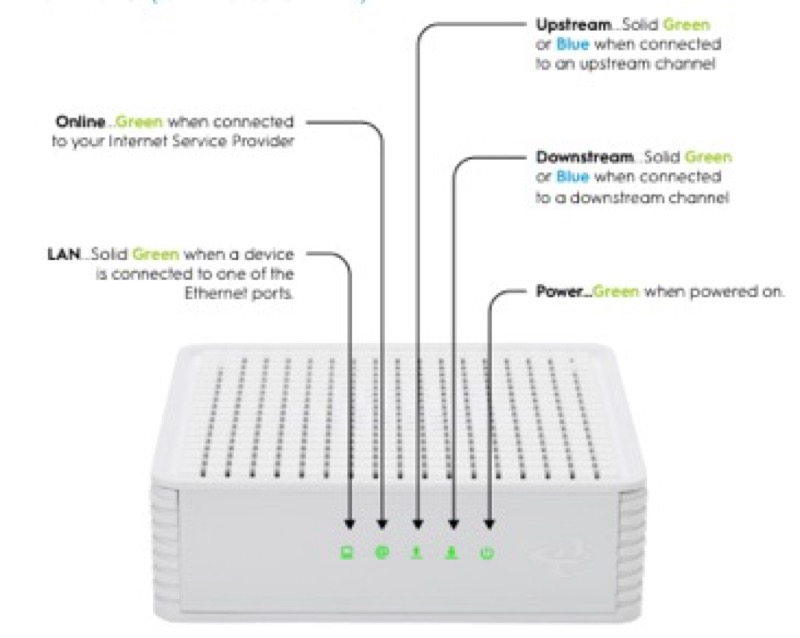
A router’s boot sequence is the set of light states it passes through between being switched on and being ready. The sources on this site document that sequence for three brands, and each brand’s sequence is short. The common shape is the same: the light starts in a boot state, moves through registration or connection, and ends in a steady state that means the device is working. The steps and colours differ, so the sequence is only meaningful for the brand whose table you are reading.
For Cox’s XER10 Panoramic router (S31), the boot runs from solid amber (initial power-up and boot), to flashing amber (the Ethernet WAN acquiring an IP address), to solid white (online and functioning). For Cox’s CGM4141 gateway (S32), it runs from solid amber (boot), to flashing amber (downstream registration), to flashing green (upstream registration), to solid white (online). For Spectrum’s WiFi 6 router (S02), it runs from flashing blue or green (booting up), to pulsing (connecting to the internet), to solid (connected to the internet). For Verizon’s CR1000A (S08), it runs from fast blinking white (booting or a system restart) to solid white (normal operation).
So a boot sequence ends in a solid state that means the device is working. A red state is the exception: it is a fault, and it is not part of the normal sequence on any of these brands.
#2 Boot sequence by brand
| Brand and device | Boot state | Registration or connection | End state |
|---|---|---|---|
| Cox XER10 Panoramic router | Solid amber | Flashing amber (IP acquisition) | Solid white (online) |
| Cox CGM4141 gateway | Solid amber | Flashing amber (downstream), then flashing green (upstream) | Solid white (online) |
| Spectrum WiFi 6 router | Flashing blue or green | Pulsing blue or green (connecting) | Solid blue or green (connected) |
| Verizon CR1000A | Fast blinking white | Not stated as a separate step | Solid white (normal operation) |
The Verizon row has no registration step in its chart, so the page does not invent one. Where a brand gives no step, the sequence goes straight from boot to the end state.
#3 Steps to follow the boot
- Identify the brand and device. Read the model on the label, and use that brand’s row.
- Watch the boot state. The light should begin in its boot state after power is applied.
- Watch each step in order. Note whether the light moves to the registration or connection state, and then the end state.
- Wait for the end state. The boot is finished when the light reaches its solid state: solid white for Cox and Verizon, and solid blue or green for Spectrum.
- If the boot stops at a step, check the cable. Cox’s tables ask you to verify the cable connections for a connection problem, so check the coax at the wall and the gateway.
- If the light goes red, treat it as a fault. Red is not part of the normal boot on any of these brands, so follow that brand’s red guidance.
- Contact the provider if the boot does not finish. Give the model, the state the light stopped at, and how long it stayed there.
#4 What If Scenarios
Q: My Cox gateway light stays amber during the boot. Is it stuck? Cox’s tables give solid amber as the boot state with no action, so give it time to finish. If it stays amber for a long time, check the power and the coax, then contact Cox.
Q: My Spectrum router light pulses blue for a long time. Is that the boot? The pulse is the connecting step. The manual describes pulsing as connecting to the internet, and it gives no time limit. Check the cable and modem if it does not settle.
Q: My Verizon router blinks white on start-up. Is that normal? Yes. Verizon’s CR1000A chart gives fast blinking white for a boot or system restart. The chart has no separate registration step, so the light should move to solid white when the router is working.
Q: Why is there no registration step for my Verizon router? Verizon’s CR1000A chart does not give one, so this page does not invent one. The boot goes straight to solid white.
Q: My router is a different brand or model. Does this sequence apply? Not as far as these sources show. Use the table for your own brand and model, or contact the provider.
#5 Related Articles
For the Cox XER10 and CGM4141 boot states, read the Cox gateway lights by device guide. For the Spectrum WiFi 6 start-up, read the Spectrum WiFi 6 router lights guide. For the Verizon start-up, read the Verizon router blinking white guide.